Let's get you set up on Facebook in 2 quick questions
Don't worry if you're non-techy. You're just clicking a couple of things to check what you already have. Based on your answers, I'll show you the exact steps — and nothing else.
👉 Click here first
https://business.facebook.com/
You should see a Dashboard. Come back and answer Yes or No below.
QUESTION 1 OF 2
Can you open business.facebook.com and see a dashboard?
Open Facebook Business Suite
First, let's get you into the Business Suite dashboard. This is where everything lives.
1Open a new browser tab
2Type in business.facebook.com and press Enter
3Log in with your Facebook details if asked
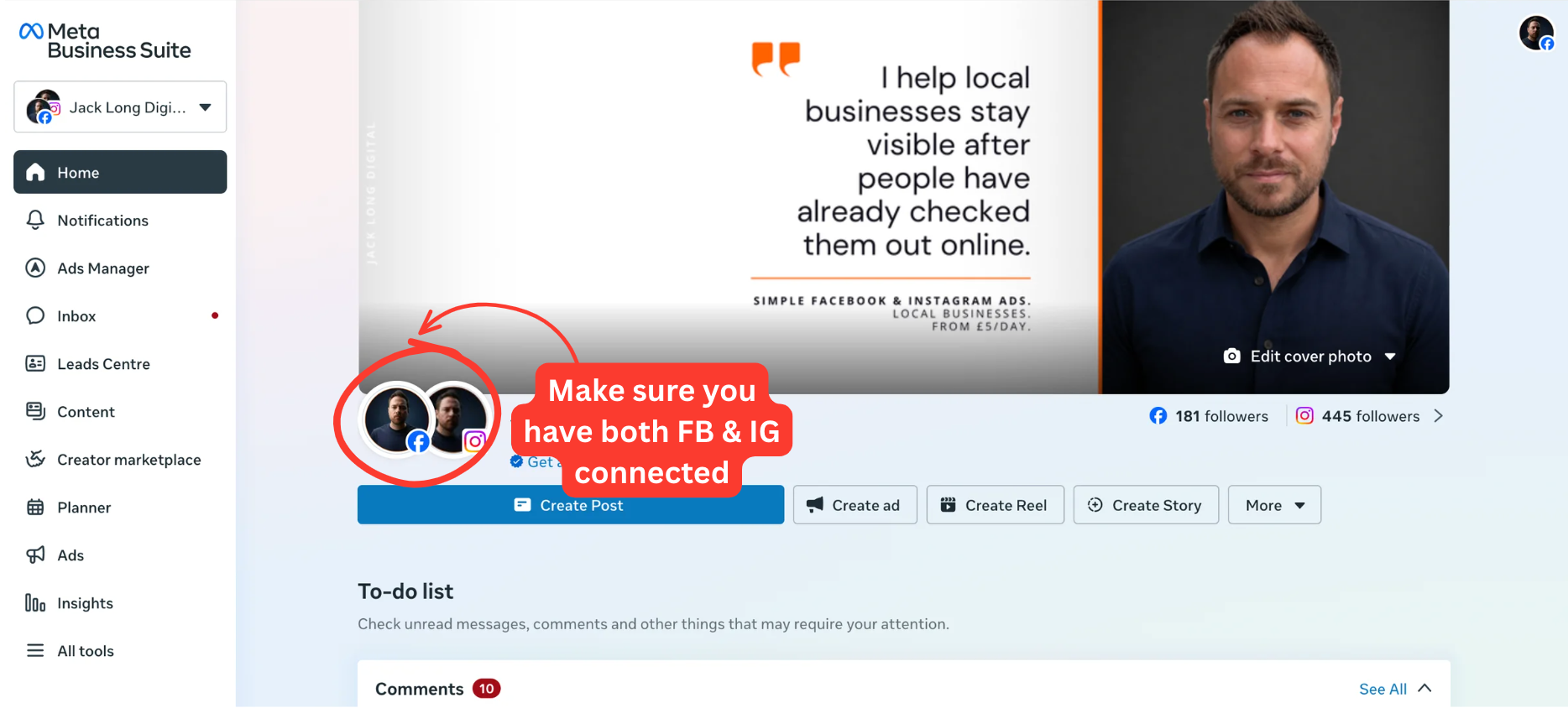
⚠️ Important — check this before you continue
Make sure both your Facebook Page and Instagram account are connected. If they're not, WhatsApp me and I'll sort it in 2 minutes.
Check if you already have an Ads Account
If you've ever boosted a post, run an ad, or clicked "promote" on Instagram — Meta has probably already created an ads account for you in the background. Most people don't realise it exists. Let's check.
1Go to adsmanager.facebook.com
What do you see?
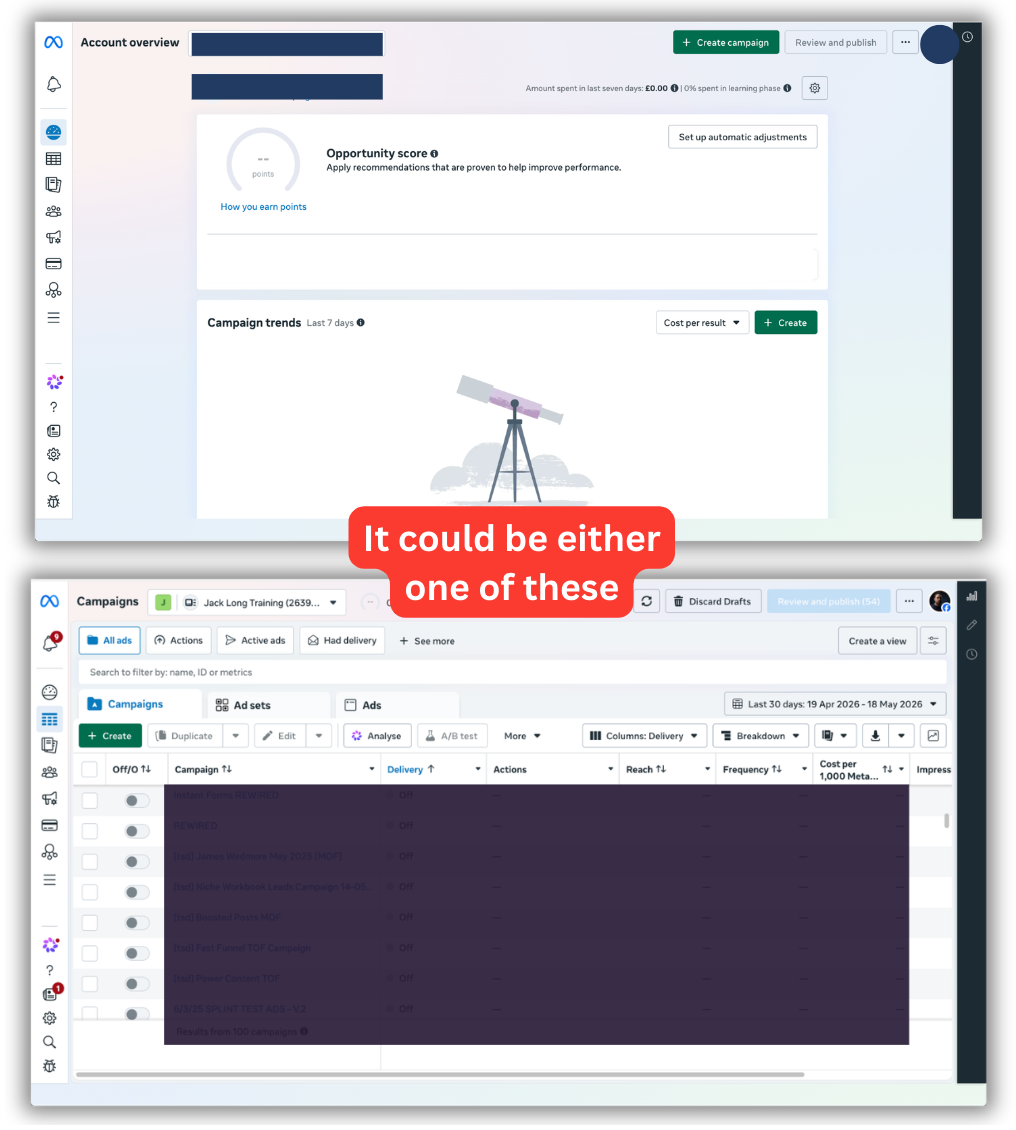
🟢 If you see an ads dashboard
You already have an ads account. Skip straight to the final step →
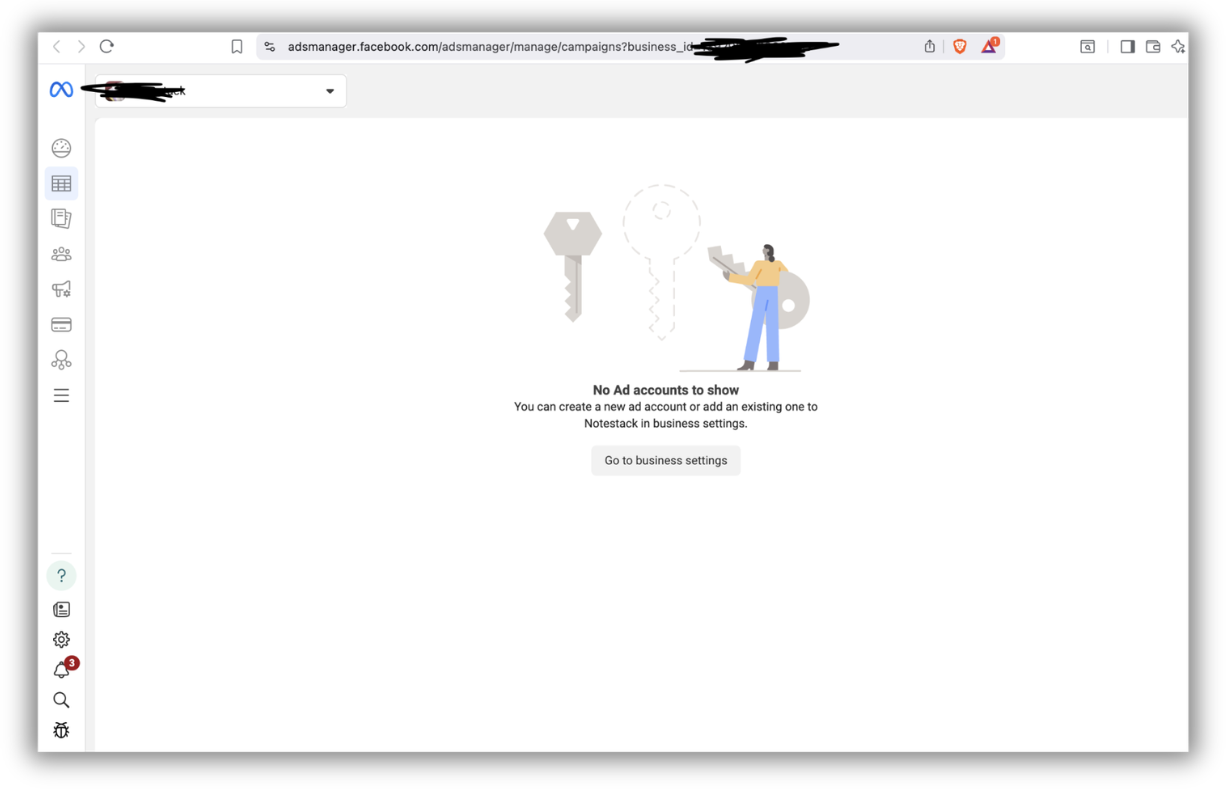
🔴 If you see a blank page
No ads account yet. No problem — let's create one. Follow the steps below.
Create your ads account
1Go back to Business Suite
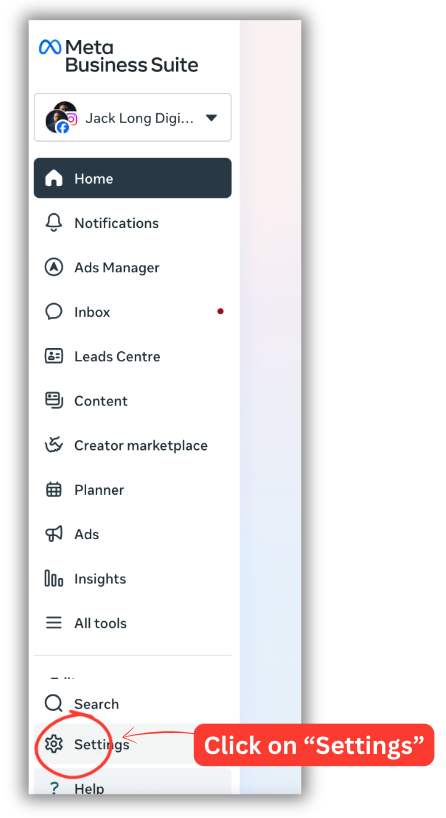
2Click Settings (bottom left corner)
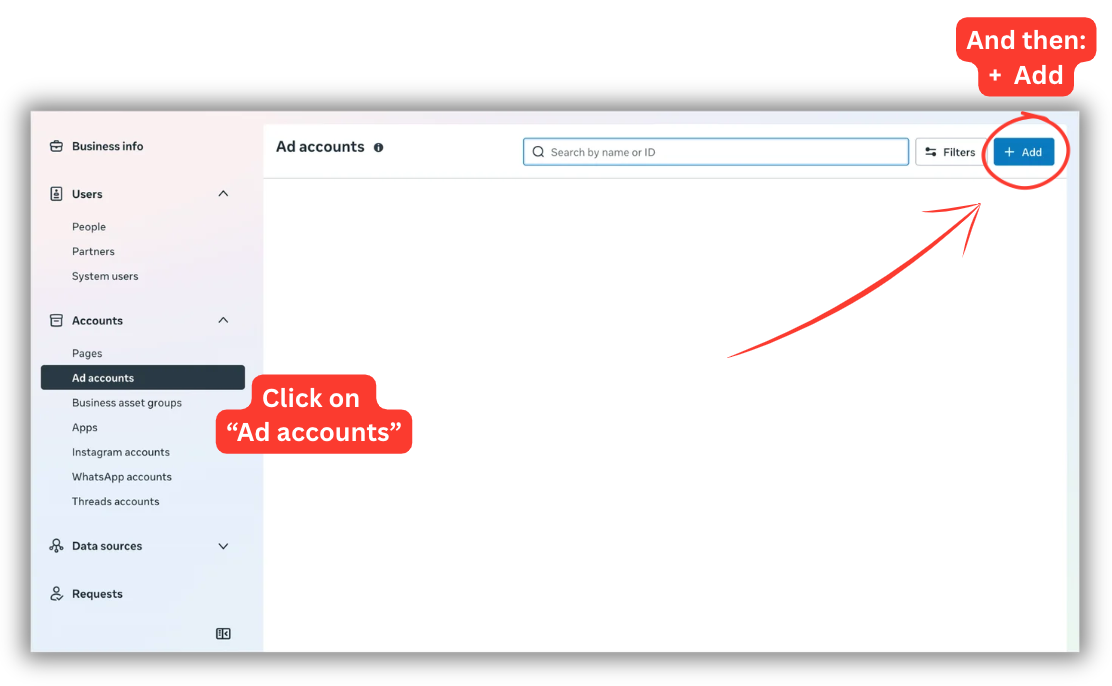
3Under Accounts, click Ad accounts
4Top right — click the blue + Add button
5Choose Create a new ad account
⚠️ Read this before you click create
Once you create the account, you cannot change the currency or time zone. Set them right first time: business name, GBP currency, London time zone.
One last thing — send me your Business ID
This is the only thing I need from you. Once I've got it, I'll send a secure request through Facebook for you to approve — and then I take it from there.
1Go to business.facebook.com
2Click Settings (bottom left)
3Click Business info
4Under your name you'll see Business portfolio ID — a long number (around 16 digits)
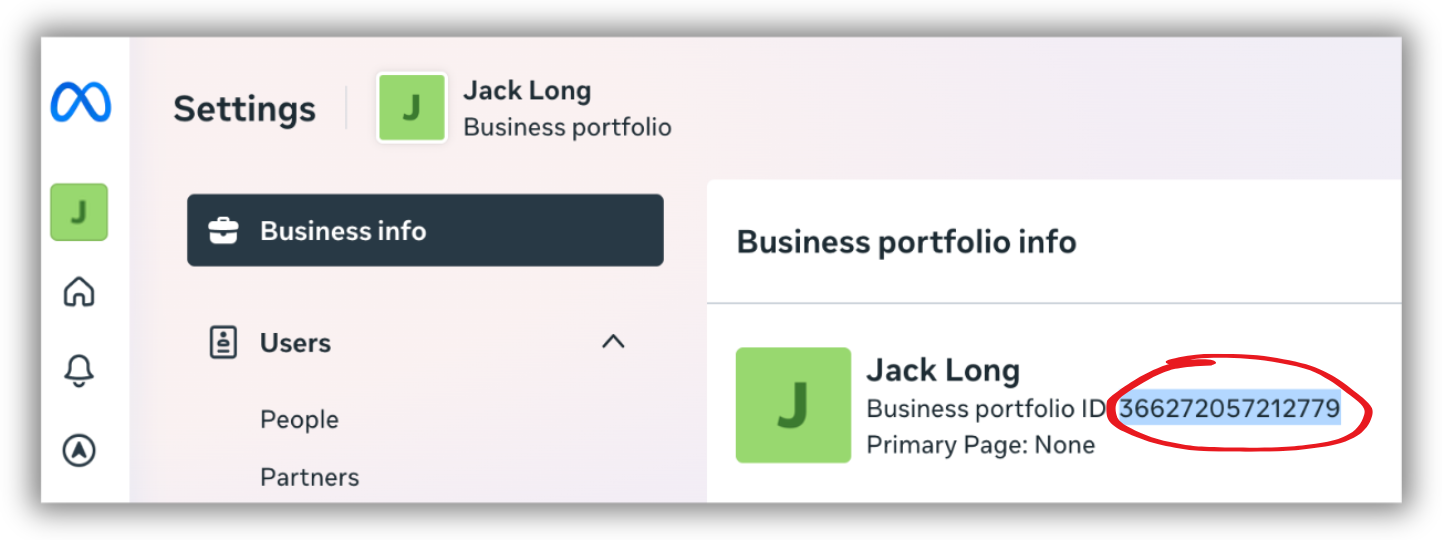
5Copy that number and send it to me on WhatsApp or email
🔒 Don't worry — this is completely safe
This number on its own does not give me any access to your account. It just lets me send you a secure request through Facebook, which you then approve. You stay in full control.
⚠️ Make sure it's the right number
It must be the Business portfolio ID from the Business info screen — not the number from your ads page. If you're unsure, just screenshot the whole screen and send me that instead.
🎉 That's it — you're done for today
Send me that number and I'll do the rest. I'll get everything set up and come back to you with anything else we need for go-live. We'll be up and running this week.